Chrome extension for 1688: add products to the CRM with one right-click
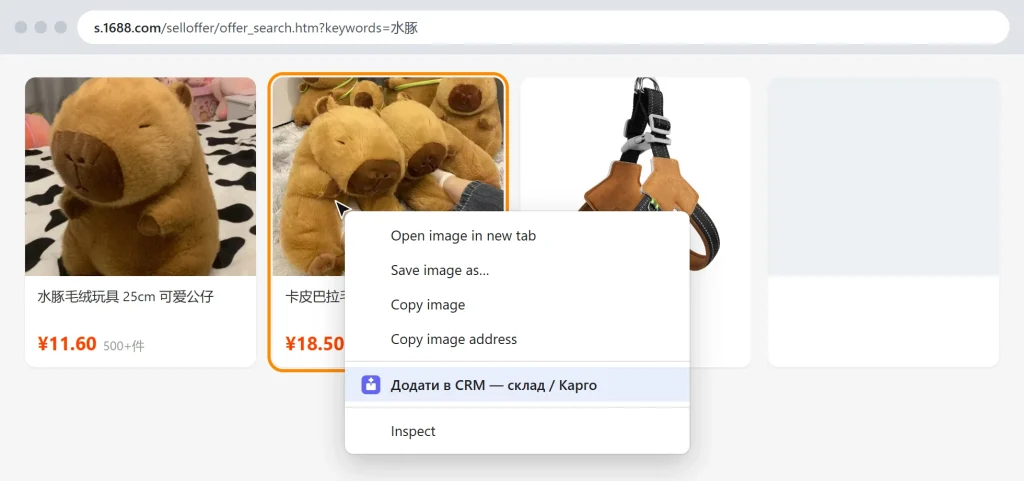
Buying on 1688 used to mean a lot of copying: save the photo, copy the link, invent an article, create the product in the warehouse, then add a line to the cargo list and type in the quantity and price. With the new ShelfCRM Chrome extension for 1688 all of that is one right-click on the product photo.
What it does
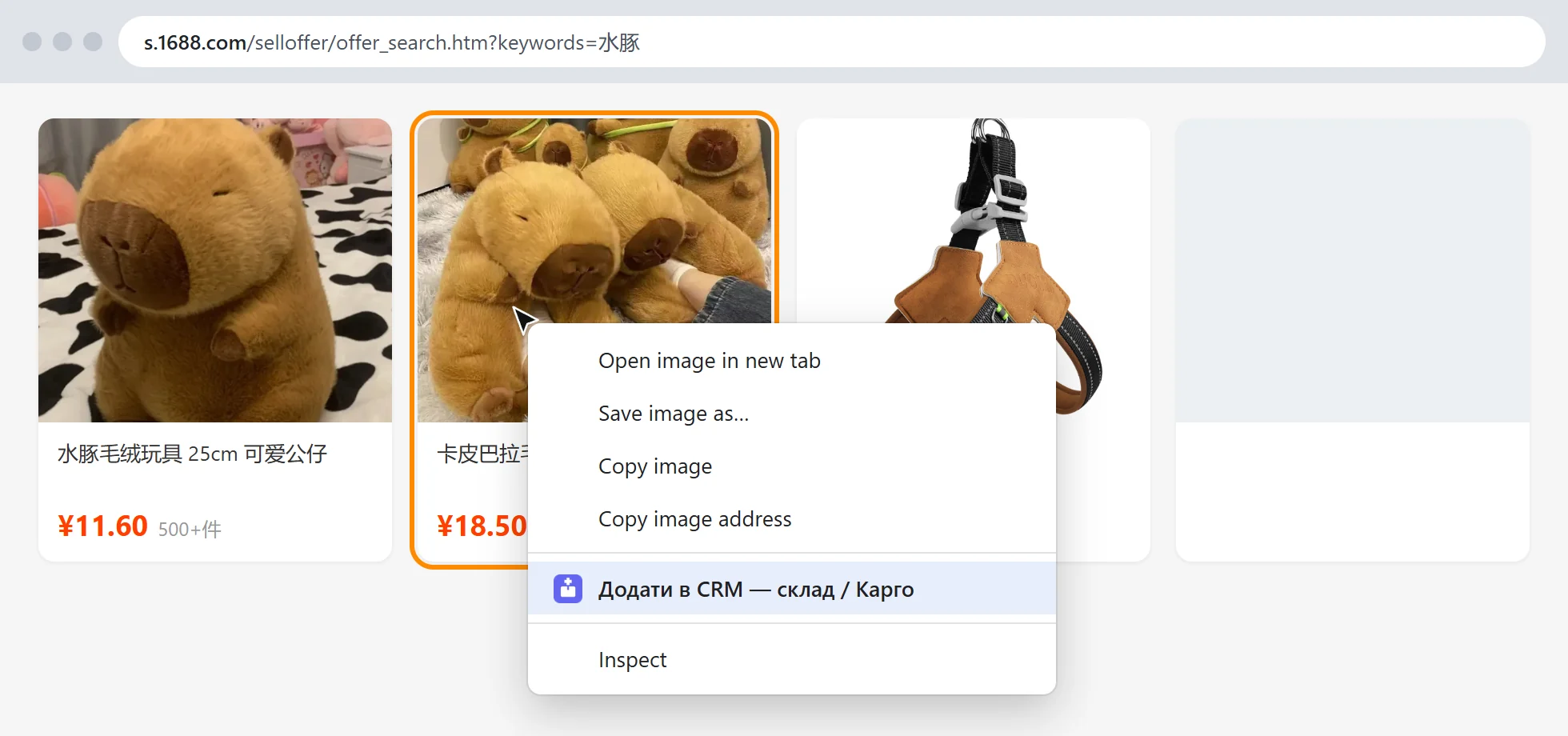
- Right-click any product photo on 1688 (search results, a shop page or the product page itself) and choose «Додати в CRM — склад / Карго» (“Add to CRM — warehouse / Cargo”).
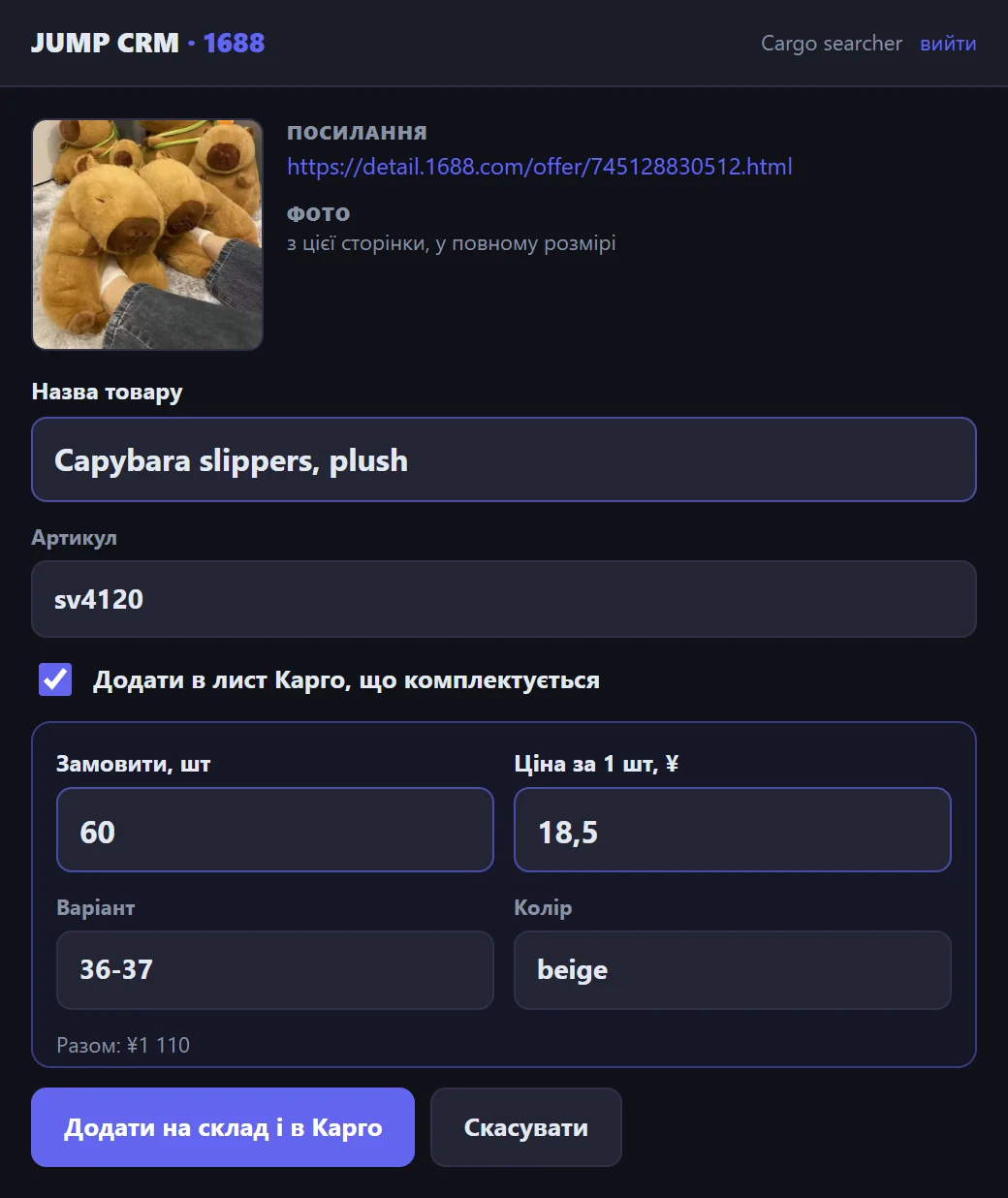
- A small window opens with the photo and the product link already filled in. The link is cleaned of tracking codes, so it is short and always points at the product.
- Type the product name. The article is filled in for you with the next number of your series, and you can change it.
- The product goes to your warehouse, and the extension downloads its photo in full size, not the small preview.
- Tick one box and the same product also becomes a line in your cargo list, with quantity, yuan price, variant and colour. You see the sum in yuan right away.
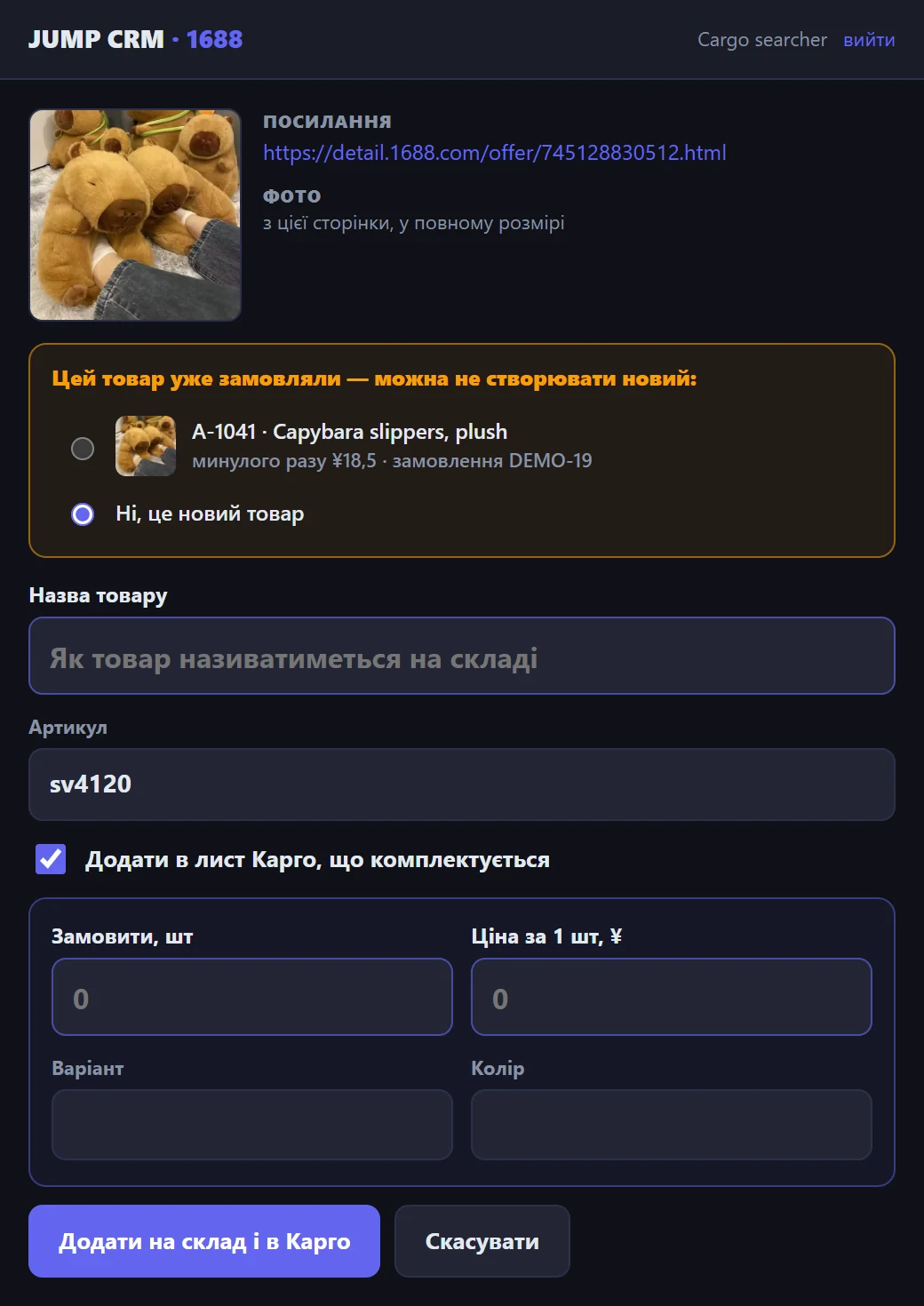
- No duplicates. If you have already bought from this 1688 offer, the extension shows the existing product with its last price and order, and you can add it to the cargo list again instead of creating a new one.
Install the extension
You install it once on each computer that is used for buying. It takes about a minute.
- In the CRM open Cargo and press 🧩 Chrome extension at the top right. The file jump-crm-1688.zip is downloaded and a window with the steps opens.
- Unzip the file. You get a folder called jump-crm-1688.
- In Chrome open chrome://extensions and switch on Developer mode (top right corner).
- Press Load unpacked and choose the jump-crm-1688 folder.
- Pin the extension: press the puzzle icon in Chrome’s toolbar and the pin next to JUMP CRM — 1688.

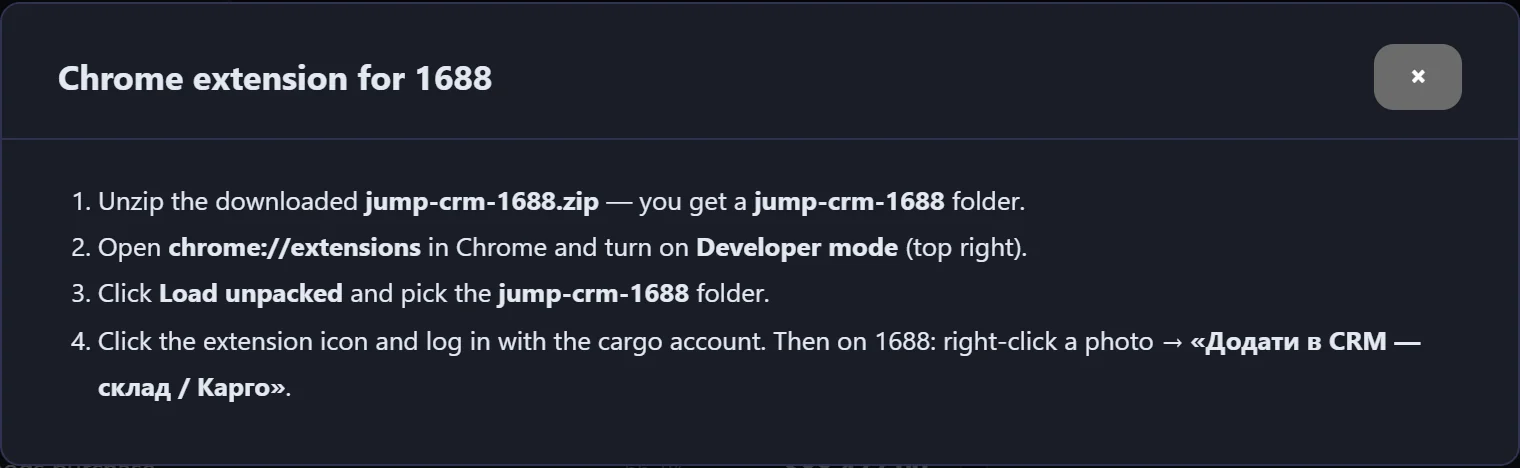
Tip: the extension is always downloaded from your own CRM, so it is always the latest version. It contains no passwords or keys: every person logs in with their own CRM account.
Log in once
- Click the extension icon in Chrome’s toolbar.
- Check the CRM address and enter your CRM login (or email) and password. Press Увійти (“Log in”).
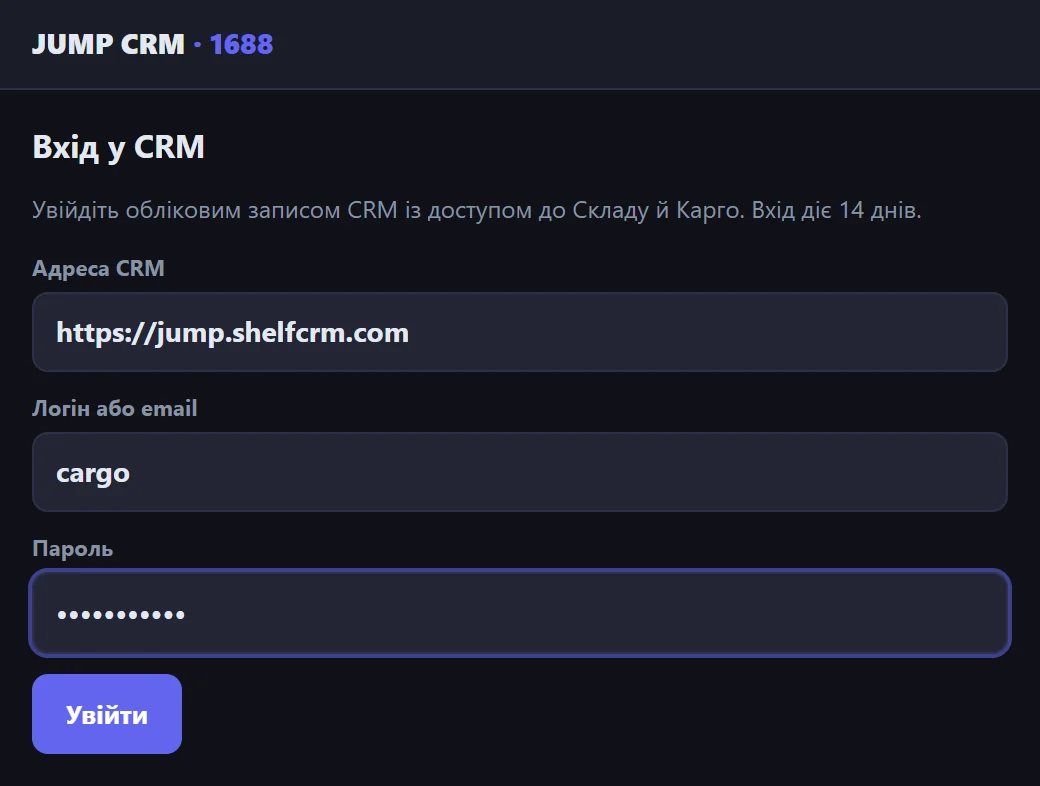
The account needs access to Cargo (view and edit) and Warehouse (edit). The easiest way is a separate role for the person who searches for goods, for example “Cargo searcher”, with only these rights. If something is missing, the extension tells you exactly which right.
Add a product from 1688
- Open 1688 and find the product. Right-click its photo and choose «Додати в CRM — склад / Карго».
- In the window that opens, type the product name (Назва товару) as it should be called in your warehouse. Check the article (Артикул).
- Leave «Додати в лист Карго, що комплектується» (“Add to the cargo list being put together”) ticked and fill in the quantity (Замовити, шт) and the price per piece in yuan (Ціна за 1 шт, ¥). Variant (size) and colour are optional.
- Press «Додати на склад і в Карго» (“Add to warehouse and Cargo”). Done.
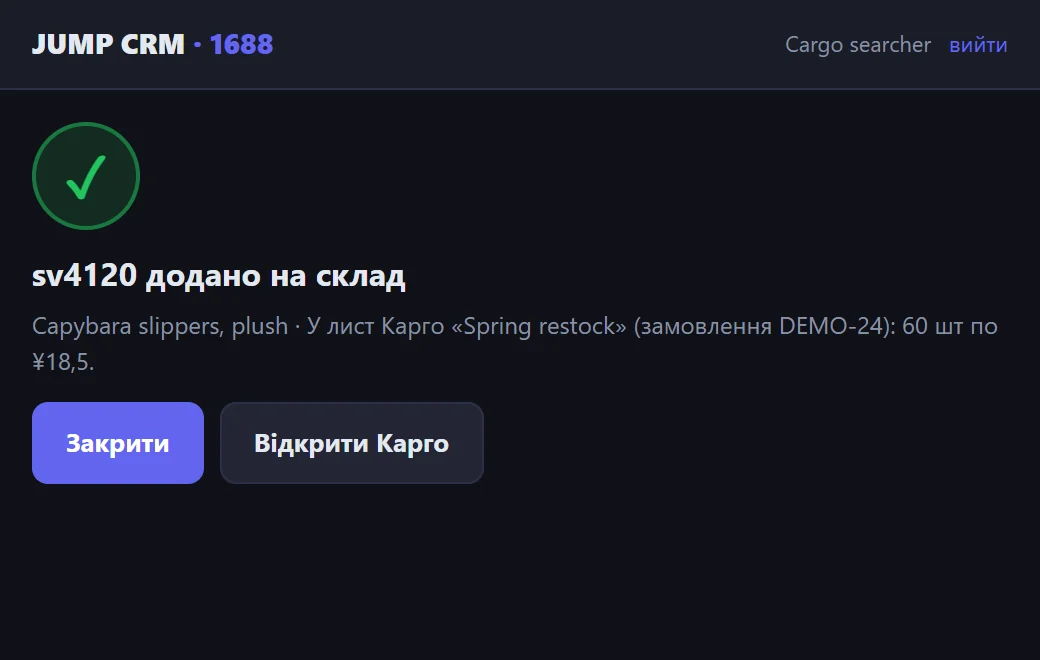
The line lands in your newest cargo list with the status “Being packed”. If several lists are being packed, the form shows a Лист Карго (cargo list) field to pick one. If none is open, the product goes only to the warehouse and the form says so.
Already bought it before?
When you right-click a product you have ordered before, a yellow box appears at the top: «Цей товар уже замовляли» (“This product was already ordered”). It shows your existing product, its last yuan price and the order it was in.
- Choose the existing product to add it to the cargo list again. The warehouse stays clean, without a second copy.
- Choose «Ні, це новий товар» (“No, this is a new product”) if it is a different item from the same offer, for example another colour you keep as a separate product.
Good to know
- The extension’s interface is in Ukrainian for now. This post gives the English meaning of each field.
- A new product is created in the China segment of your warehouse, with the 1688 link and photo saved in its card.
- If the photo cannot be downloaded (1688 sometimes blocks it), the product is still created and the extension tells you to add the photo in the product card.
- Click the extension icon at any time to see which account is logged in, to open the CRM or to log out.
- In the CRM the new line works like any other: it turns green once the article, quantity, link and price are filled in, and you can share the finished list with your cargo company as a link.
The 1688 extension is part of the ShelfCRM Cargo module. If you buy in China and want to try it, send us a request below.